Client Crash? Check Error Dialog signal
Explains how to investigate client crashes in Business Central online, where Event Viewer is unavailable, by using telemetry and the Error Dialog signal (RT0030) in Azure Data Explorer dashboards. In the case described, InvalidOperation crashes began after an upgrade from 25.5 to 26.1 and pointed to the platform. Microsoft confirmed a race condition, fixed online from component version 26.0.37691.0 and expected on-premises in Cumulative Update 5.
 post Dynamics 365 Business Central tales, myths, legends. And something serious.
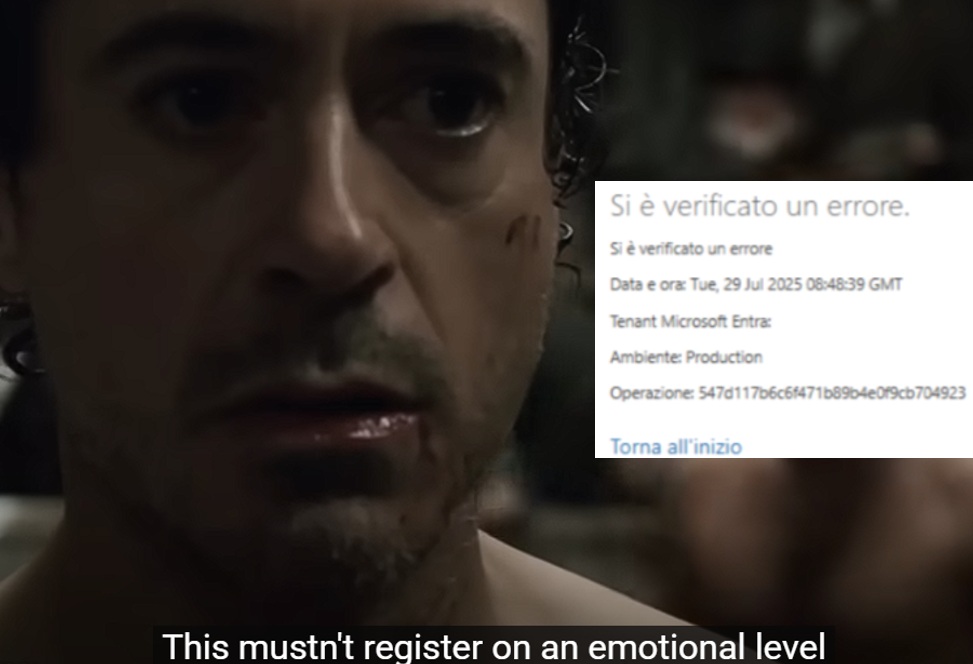
"When the client dies with a smile, it always leaves you with a timestamp AND an operation id."
Key points
- Online environments give no Event Viewer access, so telemetry is the way to investigate client crashes
- Start from the operation id shown at the crash, then follow the session id across the traces and pageViews tables
- Dashboard tiles built on RT0030 (by failure reason, details, stack trace and timeline) showed InvalidOperation errors starting right after the upgrade to 26.1
- The errors came from hundreds of unrelated stack traces that all modified records, which pointed to the platform; Microsoft support confirmed a race condition
- The fix is in component version 26.0.37691.0 or later online and is expected in Cumulative Update 5 for on-premises 26.x
Quotes
- “When the client dies with a smile, it always leaves you with a timestamp AND an operation id.” (Operation IDs are the starting point for tracing what caused a crash in telemetry when Event Viewer is unavailable)
Context
- Features: Error Dialog telemetry, Azure Data Explorer queries, Telemetry filtering, Stack trace analysis, Operation tracking
- Versions: 25.5, 26.0, 26.1, 26.3
Source: Duilio Tacconi, community blog. Summary, key points and quotes are derived (CONTENT-NOTICE.md); read the original for the full text.