Dynamics 365 Business Central: Analyzing performance issues using the page inspector
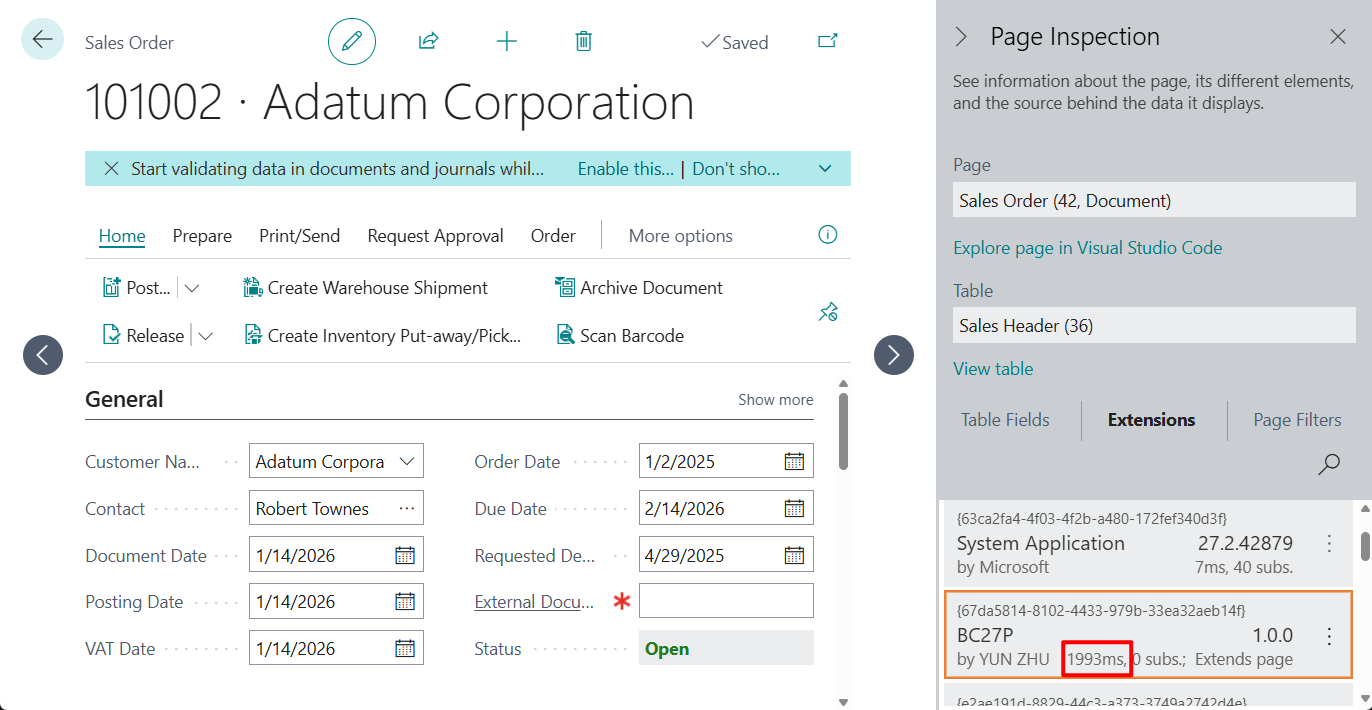
The page inspector in Business Central helps diagnose performance issues by displaying details about page design, elements, and data sources. It particularly shows which extensions affect a page and how long they take to execute, accessible via Help & Support or Ctrl+Alt+F1.
 post Dynamics 365 Lab
"If a specific page takes too long to load, it might be due to extensions that are adding expensive operations to the page triggers."
Key points
- Page inspector reveals page design, elements, and data sources behind pages
- Extensions tab shows installed extensions affecting the page with execution time in milliseconds and event subscriber counts
- Four extension types are categorized: adds page, extends page, adds table, extends table
- Performance information displays execution time and number of event subscribers per extension
Quotes
- “If a specific page takes too long to load, it might be due to extensions that are adding expensive operations to the page triggers.” (Identifies the common cause of performance issues that page inspector can help diagnose)
AL objects mentioned
As named in the post. A name that matches one object page by exact type and name links to it; the others stay as named.
- page “Help & Support”
Not found in BC28-30: page “Help & Support”.
Context
- Features: page inspector, Extensions tab, performance analysis, page design inspection, event subscriber tracking, execution time monitoring
Source: Dynamics 365 Lab - Yun Zhu, community blog. Summary, key points and quotes are derived (CONTENT-NOTICE.md); read the original for the full text.