Dynamics 365 Business Central: How to split a string on a fixed character (delimiter or separator) via AL
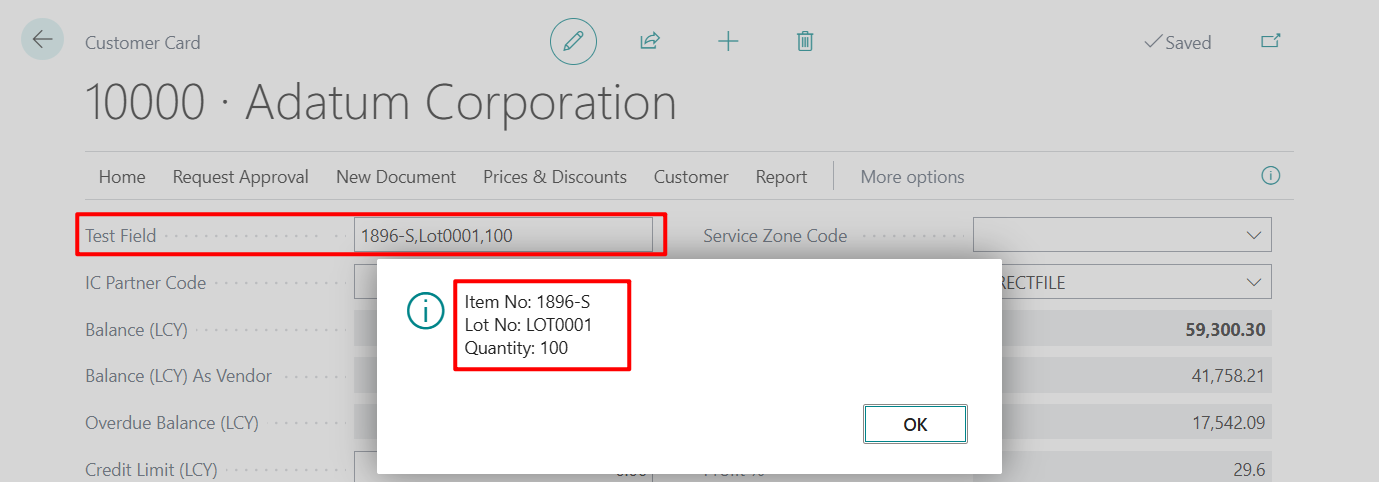
String splitting in AL using the Text.Split method to parse delimited data like QR codes into separate values. This approach uses lists to store extracted substrings and retrieve them by index.
 post Dynamics 365 Lab
"Text.Split(List of [Text]) Method: Splits a string into a maximum number of substrings based on a collection of separators."
Key points
- Text.Split method breaks a string into substrings based on specified separators like commas
- List data type stores split values as an ordered, unbounded collection accessible by index
- Clean data is required as embedded delimiters in master data will cause incorrect extraction
- Useful for parsing concatenated external data such as QR codes containing multiple fields
Quotes
- “Text.Split(List of [Text]) Method: Splits a string into a maximum number of substrings based on a collection of separators.” (This is the core method for splitting delimited strings in AL, the key tool for solving the problem.)
- “List data type: Represents a strongly typed list of ordered objects that can be accessed by index.” (Lists provide the mechanism to store and access individual split values, making the solution practical.)
- “if the master data contains delimiters, it won’t be able to retrieve the correct values.” (Highlights a critical limitation that affects implementation success and data quality requirements.)
AL objects mentioned
As named in the post. A name that matches one object page by exact type and name links to it; the others stay as named.
- other “Text.Split”
Heads up
- gotcha: “if the master data contains delimiters, it won’t be able to retrieve the correct values”
Context
- Features: string splitting, text parsing, list operations, delimiter handling
Source: Dynamics 365 Lab - Yun Zhu, community blog. Summary, key points and quotes are derived (CONTENT-NOTICE.md); read the original for the full text.