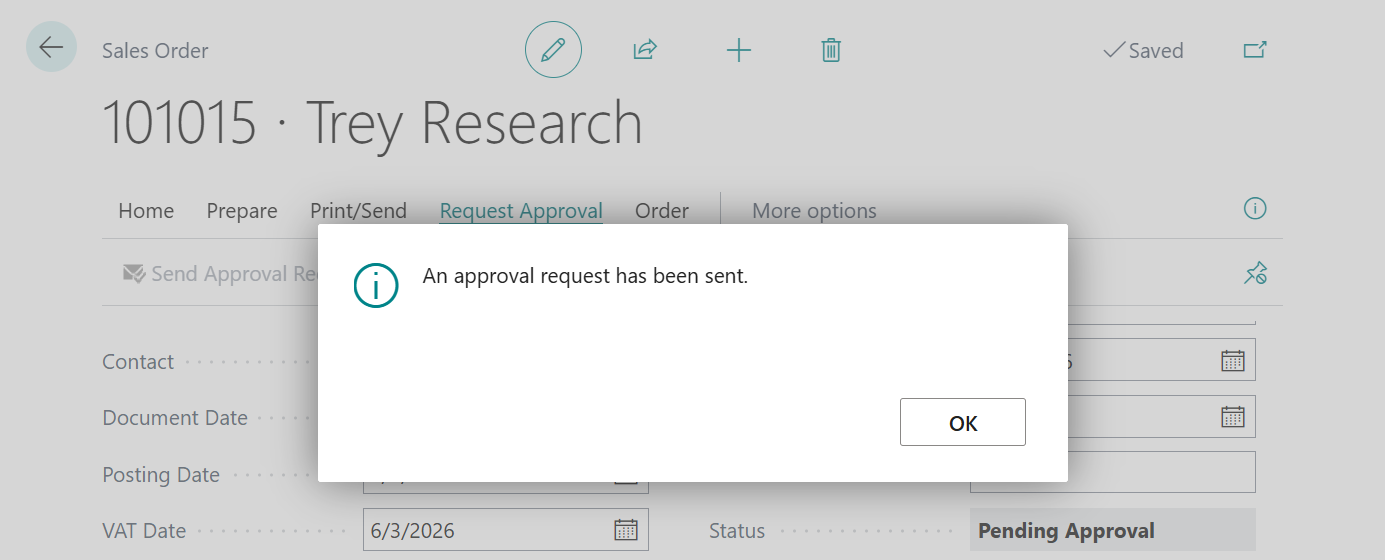
Dynamics 365 Business Central: How to hide the confirmation message (An approval request has been sent) when sending an Approval Request?
Approval workflows in Business Central can be configured to hide the confirmation message that appears after sending an approval request by disabling the 'Show Confirmation Message' option in the workflow response settings, with no customization required.
 post Dynamics 365 Lab
"Workflows are usually implemented to integrate business logic into an organization, such as the separation of duties, unifying processes, or to apply best practices."
Key points
- Workflows automate approval processes for sensitive business records like vendor data, customer credit limits, and purchase orders
- The ‘Show Confirmation Message’ option controls whether users see the ‘An approval request has been sent’ confirmation after submitting for approval
- This setting is found in the Options for the Selected Response tab when configuring an approval request action
- No AL customization is needed to hide the message, just toggle the option off in workflow settings
Quotes
- “Workflows are usually implemented to integrate business logic into an organization, such as the separation of duties, unifying processes, or to apply best practices.” (Explains the purpose and value of workflows in Business Central for organizational processes)
- “Show Confirmation Message: Specifies that a confirmation message is shown to users after they request an approval.” (Identifies the exact setting name and its function that needs to be toggled to hide the message)
Context
- Features: approval workflows, approval requests, workflow options, confirmation messages, record restrictions
Source: Dynamics 365 Lab - Yun Zhu, community blog. Summary, key points and quotes are derived (CONTENT-NOTICE.md); read the original for the full text.