Dynamics 365 Business Central: How to show or hide subform fields based on a value in the main page
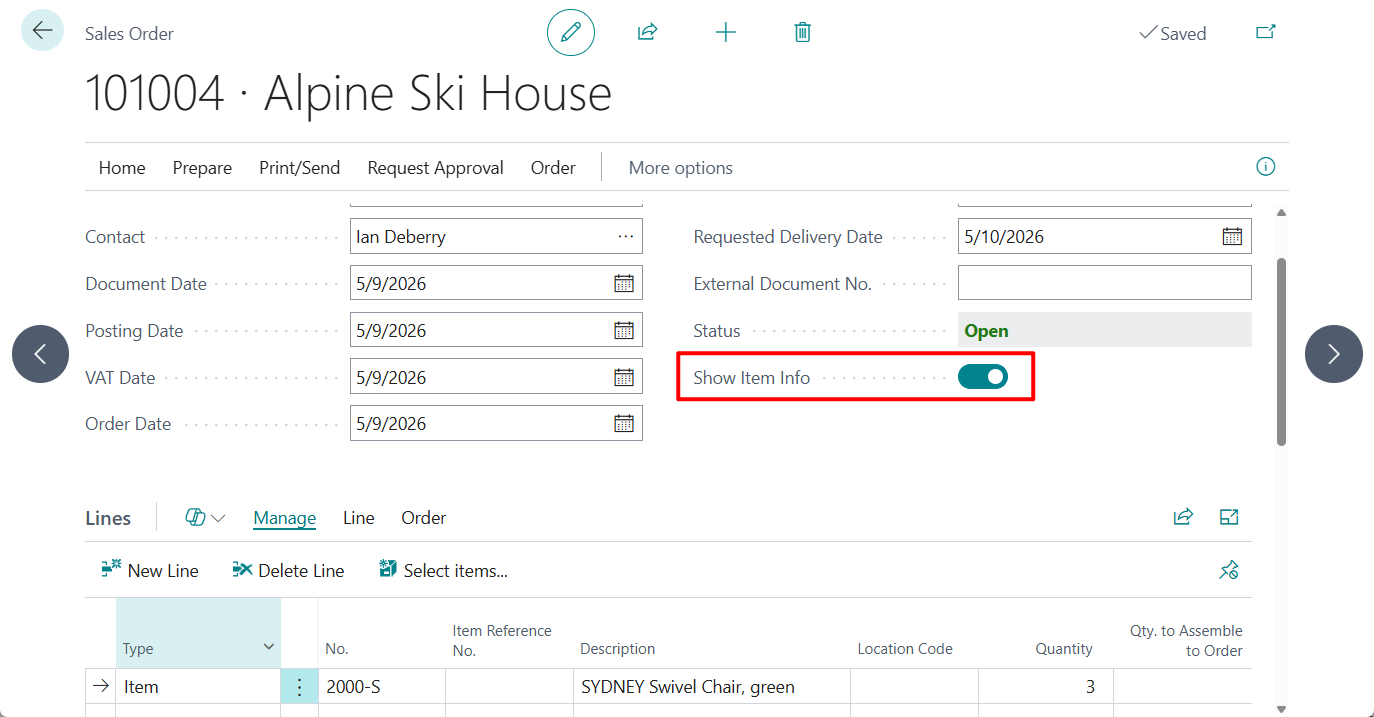
This post explains how to dynamically show or hide subform fields based on a value in the main page of a Sales Order, using a custom field and page extension logic in AL code to create a responsive user interface.
 post Dynamics 365 Lab
"In Dynamics 365 Business Central development, creating a responsive UI is key to a great user experience."
Key points
- Add a custom Boolean field to the main page (Sales Header) to control visibility state
- Use page extensions to modify subform fields and implement a SetShowItemInfo procedure
- Implement OnValidate and OnOpenPage triggers to update field visibility in real time when the main page field changes
- The example demonstrates hiding or showing Item No., Item Reference No., and Description fields in the Sales Order Subform
Quotes
- “In Dynamics 365 Business Central development, creating a responsive UI is key to a great user experience.” (Sets the context that dynamic UI control is essential for user experience in Business Central development)
AL objects mentioned
As named in the post. A name that matches one object page by exact type and name links to it; the others stay as named.
Possibly related
No source states these links: they share an object, a model read them, or a person found the same subject.
- Business Central Under the Hood episode 14: Building Agents in Business Central — possibly related: both name Page 42 “Sales Order”
- Create Purchase Orders from Drop Shipments — possibly related: both name Page 42 “Sales Order”
- Directions EMEA 2023 Keynote: Business Central saves time for consultants and power users — possibly related: both name Page 42 “Sales Order”
- Dynamics 365 Business Central Blog Series: Item Attributes — possibly related: both name Page 42 “Sales Order”
- Dynamics 365 Business Central: About the size of the value displayed on the card/document page (textbox too small to read?) — possibly related: both name Page 42 “Sales Order”
- Dynamics 365 Business Central: Adding comments to Factbox/Report (Displaying Comments in a FactBox/Report) — possibly related: both name Page 42 “Sales Order”
- Dynamics 365 Business Central: All Copilot and agent capabilities — possibly related: both name Page 46 “Sales Order Subform”
- Dynamics 365 Business Central: Can we edit data directly in FactBox? — possibly related: both name Page 42 “Sales Order”
- Dynamics 365 Business Central: How to hide/disable New, Edit (Edit List), and Delete actions on the page — possibly related: both name Page 42 “Sales Order”
- Dynamics 365 Business Central: How to note the records that the user has selected on the Subpage/Lines (Page.SetSelectionFilter in part) — possibly related: both name Page 46 “Sales Order Subform”
Context
- Features: dynamic field visibility, page extensions, table extensions, field modifications, real-time UI updates, responsive UI
Source: Dynamics 365 Lab - Yun Zhu, community blog. Summary, key points and quotes are derived (CONTENT-NOTICE.md); read the original for the full text.