Dynamics 365 Business Central Blog Series: Handle CSV (comma-separated values) files
This is an index post for a series of articles on handling CSV files in Business Central. It links to articles on importing and exporting table data as CSV, bulk importing long text through AL, using Power Automate for CSV import and export without customization, previewing files such as CSV inside BC, and the BC25 Copilot feature that suggests sales lines from a CSV file.
 post Dynamics 365 Lab
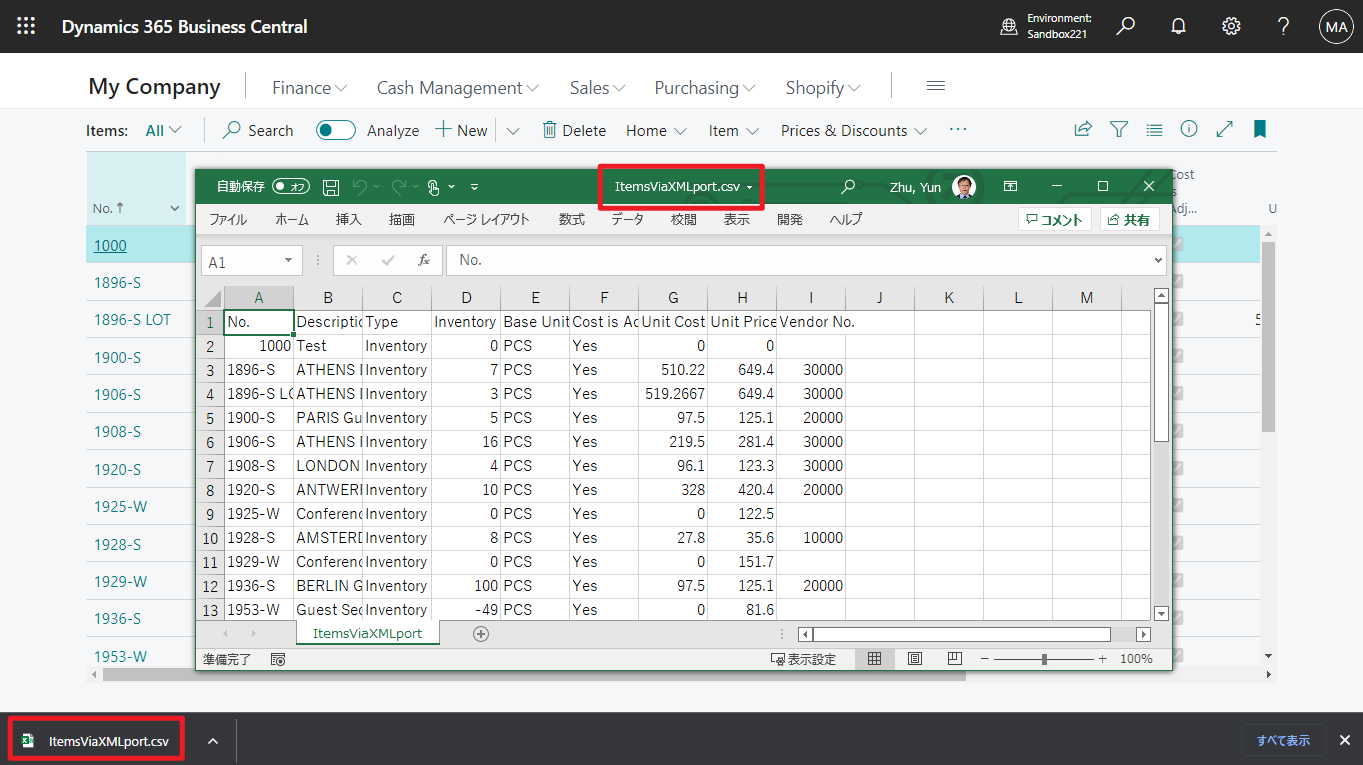
"How to import data from CSV (comma-separated values) file"
Key points
- The post only lists links to separate articles and has no technical content of its own
- Covered topics include importing CSV data into BC and exporting table data to CSV
- Power Automate can export BC data to CSV (JSON to CSV) and import CSV into BC (CSV to JSON) without customization
- Text longer than 250 or 2048 characters can be bulk imported from external files using AL
- Since 2024 wave 2 (BC25), Copilot can suggest sales lines from a CSV file
Quotes
- “How to import data from CSV (comma-separated values) file” (Establishes the core capability of importing CSV data into Business Central)
- “How to export data from Business Central to a csv file with Power Automate (No customization)” (Shows that CSV export works without requiring custom development using Power Automate)
- “Suggest sales lines from CSV (comma-separated values) file (Create sales lines easily with Copilot)” (Highlights the modern AI-powered approach to CSV data handling in the latest BC version)
Context
- Features: CSV import, CSV export, Power Automate integration, bulk text import, file preview, Copilot suggestions for sales lines
- Versions: Business Central 2024 wave 2 (BC25)
Source: Dynamics 365 Lab - Yun Zhu, community blog. Summary, key points and quotes are derived (CONTENT-NOTICE.md); read the original for the full text.